Documentation / Setup / Dropbox
Connect Dropbox to your NAS
Create a Dropbox app, save its credentials on your NAS, then link a Dropbox account to your existing PaNasMs user.
This guide covers both linking a Dropbox account and synchronizing files with Cloud Sync. Account linking reads basic account information; Cloud Sync asks for separate permission to read and change files. Linking alone never starts a transfer. Dropbox panel sign-in is not supported.
Before you start
- Have a Dropbox account with a verified email address and access to its two-factor authentication method, if enabled.
- Sign in to PaNasMs as an administrator to configure the client. Linking an account also requires your current NAS/Linux password.
- Keep the NAS and Dropbox tabs open. Both the NAS and your browser need internet access.
Already have an app configured for this NAS? Check its permissions and callback, then skip to account linking. A separate app is not needed for each linked account.
How the callback gateway works
Your NAS can stay on a private network, behind NAT or CGNAT. No public NAS address, domain name or router port forwarding is needed. The standard callback is:
https://panasms-oauth-gateway.panasms.workers.dev/callback- The NAS opens Dropbox authorization in a separate tab.
- After you approve, Dropbox sends a temporary authorization code to the HTTPS gateway.
- The NAS retrieves that response through an outbound connection and exchanges the code directly with Dropbox.
- The NAS reads your account identity and completes the link. Return to the original NAS tab if the authorization tab does not close automatically.
The gateway relays the temporary code and an opaque request identifier. It does not receive your app secret or resulting access token, proxy your files, or make the NAS remotely accessible. No separate proxy installation is required. Keep the original NAS tab open until linking finishes.
1. Create a Dropbox app
- Open the Dropbox App Console and sign in.
- Click Create app.
- Choose Scoped access.
- Choose Full Dropbox to synchronize existing Dropbox folders with Cloud Sync. App folder limits file access to an application-specific folder. The access type alone does not authorize file access: scopes and user consent determine what this connection can do.
- Enter a recognizable, available name, such as PaNasMs Home NAS. If it is taken, add a unique suffix.
- Read the Dropbox API Terms and Conditions. If you agree, check the agreement box and click Create app.
2. Select the required permissions
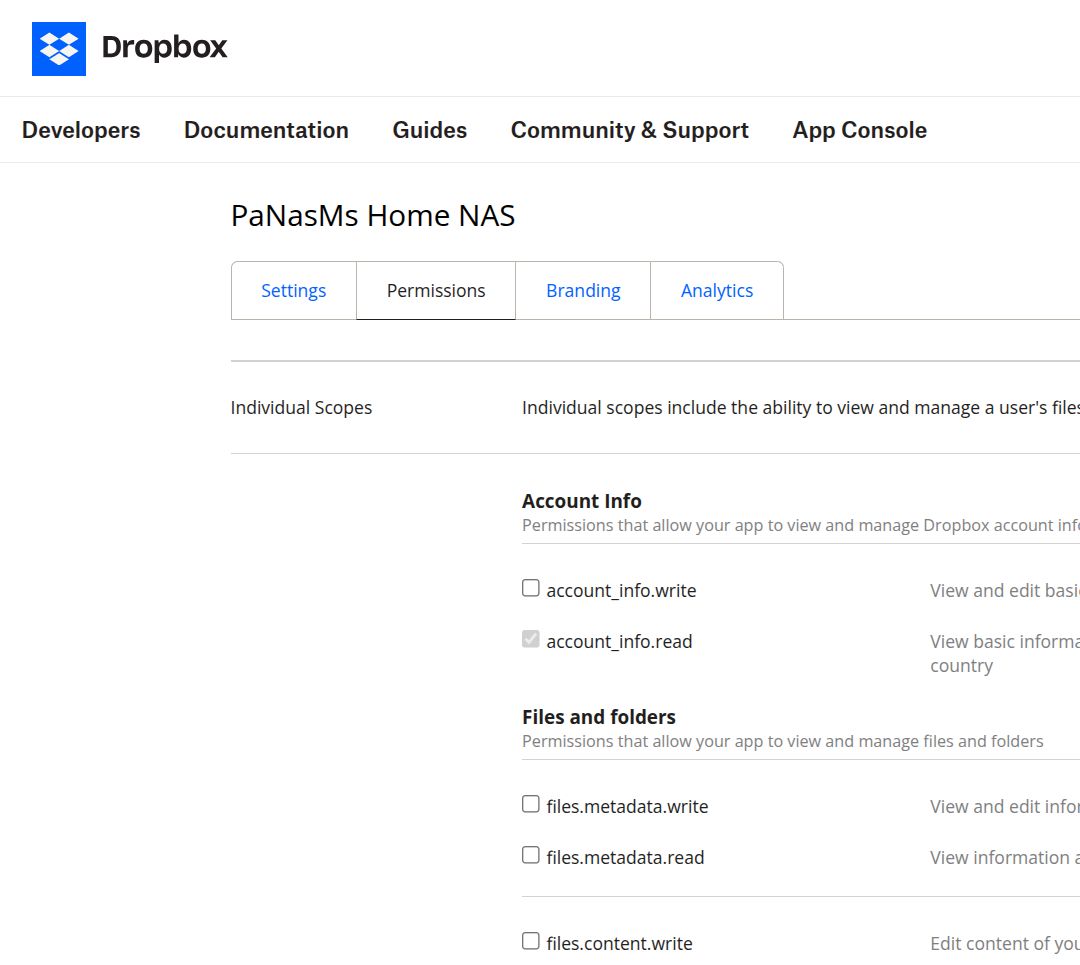
Open your app's Permissions tab. For account linking and Cloud Sync, enable exactly these four permissions under Individual Scopes:
account_info.read— identify the Dropbox account and read its basic profile information. This is also required for account linking.files.metadata.read— list folders and files and detect cloud changes.files.content.read— download files from Dropbox to the NAS.files.content.write— upload and update files, create folders and propagate deletions during two-way synchronization.
For account linking only: enable just account_info.read. The other three permissions are needed when you add Cloud Sync. The current Cloud Sync connection requests all four even if you later choose a download-only task.
Dropbox may automatically check and lock a required permission; that is normal. Leave account_info.write, files.metadata.write, files.permanent_delete, sharing, contacts, OpenID and team permissions unchecked. They are not needed by this integration.
Click Submit at the bottom of the page to save your changes. A disabled Submit button means there are no pending changes.
3. Add the callback URI
- Return to the app's Settings tab.
- Under OAuth 2 → Redirect URIs, paste the exact Authorized redirect URI displayed in Settings → External connections → Dropbox on your NAS. With the standard gateway, use the HTTPS address above, including
/callback. - Click Add. Wait until the address appears as a saved row and the input clears. Text still sitting in the input is not proof that it was saved.
Leave unrelated settings unchanged. You do not need a Generated access token, webhook, Chooser/Saver domain or extension for this setup.
4. Configure your NAS
- In Dropbox's app settings, find App key and App secret. Click Show to reveal the secret.
- On the NAS, open Settings → External connections → Dropbox.
- Copy App key into Client ID.
- Copy App secret into Client secret. Do not use a generated access token instead.
- Check Enable Dropbox account linking and click Apply in the Dropbox section.
Keep the secret out of screenshots, repositories, support messages and chats. After saving, the NAS displays dots in the secret field. Leaving it empty on a later save preserves the saved secret when Client ID is unchanged.
Enabling the client does not yet link your Dropbox account.
5. Link your account
- Open My profile → Connections on your NAS.
- Click Link Dropbox account.
- Enter your current NAS/Linux password, not your Dropbox password, and click Continue.
- Sign in to the intended Dropbox account and review the request. It should request basic account information, not files.
- Approve the request, then return to the original NAS tab. Your account should appear under Linked accounts.
If the browser blocks the new tab, use the authorization link in the NAS dialog. PaNasMs uses Dropbox's stable account ID to identify the account and requires a verified email. Account linking does not change your Linux permissions or passwords.
6. Enable Cloud Sync (optional)
Use PaNasMs core 0.2.8 or newer and Cloud Sync 0.1.10 or newer. First save all four permissions listed in step 2.
In Cloud Sync → Add connection, choose Dropbox, select your linked account and click Allow Dropbox file access. Confirm your NAS password and approve Dropbox access. The NAS securely stores an offline permission so background sync can renew short-lived tokens. The callback gateway stays the same and does not handle files.
Already linked your account before enabling file permissions? Keep that link and the existing App key and App secret. Saving permissions in Dropbox does not expand an existing authorization automatically: complete Allow Dropbox file access in Cloud Sync and approve the new request. If a Cloud Sync connection already exists but lacks file access, use Reconnect account. You do not need to delete and recreate the client or unlink your profile.
Select an existing Dropbox folder, a NAS folder and the sync direction. Review both paths before starting. The task synchronizes only that folder pair, although Dropbox's permission covers the account. Multiple accounts and multiple independent folder pairs are supported. For initial two-way synchronization, one folder must be empty.
Connecting other accounts
PaNasMs supports multiple Dropbox accounts per NAS user. Each Dropbox account can be linked to only one NAS user on the same installation.
A newly created Dropbox app may show Development users: Only you. That is sufficient to link the account that owns the app. To allow other Dropbox accounts, review Enable additional users in the app settings and Dropbox's current development limits before enabling it. Broader distribution may require production approval; creating this app does not publish it for everyone.
If something does not work
- Missing scope or file permission denied: check that all four permissions in step 2 are enabled and saved with Submit, then authorize file access again in Cloud Sync. Linking an identity or saving the App secret again does not grant the extra scopes.
- No Link Dropbox account button: save both client fields and enable Dropbox in the NAS settings.
- Redirect URI error: ensure the exact URI is saved as a row in Dropbox, not just typed in the input. Do not replace it with your NAS IP or append a slash.
- Invalid client: check that Client ID contains App key and Client secret contains App secret from the same app.
- Another account cannot authorize: check the app's Development users setting. “Only you” restricts it to its owner.
- Unverified email: verify the address in Dropbox and start linking again.
- Authorization completed but the tab remains open: check the original NAS tab for the result. Browsers may prevent automatic closing.
- Expired or cancelled request: close the NAS dialog and start a fresh attempt; do not reuse an old authorization URL.
- No Dropbox sign-in or synchronization option: Dropbox panel sign-in is not supported. For synchronization, install the updated Cloud Sync module and follow step 6; identity linking alone does not permit file access.
- Still waiting: check NAS internet access, DNS, and access to Dropbox and the gateway. Your local NAS login remains available.
Related: Google setup · GitHub setup · Dropbox developer guide.