Documentation / Setup / GitHub
Connect GitHub to your NAS
Create a GitHub OAuth client once, save its credentials on your NAS, then link your GitHub account to your existing PaNasMs user.
Result: sign in with GitHub using the same NAS permissions you already have. Your Linux password still works. This connection requests profile information only (read:user); it does not grant access to repositories, SSH keys or files.
Before you start
- Sign in to your GitHub account. Have your two-factor authentication method ready.
- Open PaNasMs as an administrator to configure the client. Linking an account also requires your current NAS password.
- Keep the NAS tab open while working in GitHub in another tab. Both the browser and NAS need internet access.
Already configured a client for this NAS? Skip to account linking. You do not need another OAuth App for each linked account.
How the callback gateway works
Your NAS can stay on your private network, behind NAT or CGNAT. You do not need a public IP address, domain name or router port forwarding. The PaNasMs gateway receives GitHub's authorization response over HTTPS:
https://panasms-oauth-gateway.panasms.workers.dev/callback- The NAS opens GitHub authorization in a separate browser tab.
- After you approve, GitHub redirects a temporary authorization code to the gateway.
- Your NAS retrieves that response through an outbound connection and exchanges the code directly with GitHub.
- The original NAS tab completes the operation. The authorization tab normally closes; if it stays open, return to the NAS tab.
The gateway receives the temporary code and an opaque request identifier, not your client secret or resulting access token. It is not a tunnel to your NAS and does not provide remote access to the panel. If GitHub or the gateway is unavailable, local password login remains available.
1. Create an OAuth App
- Open GitHub → Settings → Developer settings → OAuth Apps.
- Click New OAuth app (or Register a new application if this is your first). Choose an OAuth App, not a GitHub App or personal access token.
- Fill in the form using the values below.
- Application name: a recognizable name, such as
PaNasMs Home NAS. - Homepage URL:
https://panasms.github.io/. - Application description: optional; for example, “Sign in to your personal PaNasMs NAS with GitHub.”
- Redirect URI (sometimes called Authorization callback URL): copy the exact Authorized redirect URI shown in your NAS settings. With the standard gateway, use the HTTPS address above, including
/callback.
Leave Allow wildcard matching and Enable Device Flow off. If Expire user access tokens is offered, keep its default enabled setting. The NAS uses the returned access token only to retrieve your profile; it does not retain the GitHub access token for later repository operations.
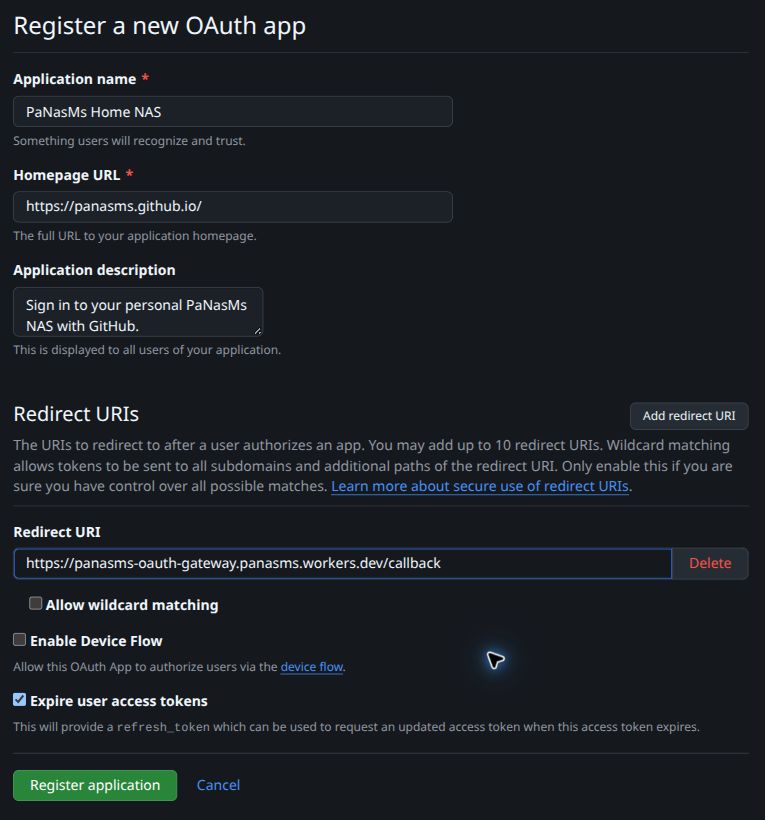
Click Register application. GitHub opens the application's settings.
2. Generate a client secret
- Find Client ID and keep this page open.
- Click Generate a new client secret.
- If GitHub shows Confirm access, complete its verification using the method offered for your account.
- Copy the newly displayed secret. GitHub only shows the full value at creation time; save it in your NAS before leaving this page.
The Client ID identifies the application; the Client secret is its password. Do not put the secret in a repository, screenshot, support message or chat. A GitHub personal access token is not a substitute.
3. Configure your NAS
- Open Settings → External connections → GitHub.
- Paste Client ID and Client secret into their matching fields.
- Check Enable GitHub account linking and sign-in.
- Click Apply in the GitHub section.
After saving, the secret field displays dots instead of the saved value. Leaving it empty on a later save preserves the existing secret when the Client ID is unchanged. Changing the Client ID requires the corresponding secret.
This enables GitHub as a sign-in option; it does not yet link a GitHub account to a NAS user.
4. Link your GitHub account
- While signed in to the NAS with your local account, open My profile → Connections.
- Click Link GitHub account.
- Enter your current NAS/Linux password, not your GitHub password, and continue.
- In GitHub, select the account you intend to link and review the permission request. Our sign-in flow requests profile access (
read:user), not repository access. - Approve authorization and return to the original NAS tab. Your GitHub username should appear under Linked accounts.
If the new tab is blocked, use the authorization link shown in the NAS dialog. Keep the original tab open until the operation completes.
You can link several different GitHub accounts to one NAS user. A GitHub account can belong to only one NAS user on this installation. Matching email addresses do not create or link users automatically; a private GitHub email is fine.
5. Try signing in
- Make sure your account is visible in Linked accounts and that you still know your local NAS password.
- Sign out of PaNasMs.
- Click Sign in with GitHub and choose the account you just linked.
- After authorization, confirm that PaNasMs opens your existing NAS account with its usual permissions.
An unlinked GitHub account cannot sign in. GitHub sign-in does not create Linux users or change Linux/SMB passwords.
If something does not work
- No GitHub button: an administrator must save valid client settings and enable the GitHub provider.
- Redirect/callback mismatch: compare the URI in the OAuth App with the exact URI displayed by the NAS. Do not substitute your NAS IP address, add a trailing slash or enable wildcard matching.
- Invalid client or failed exchange: check that the ID and secret belong to the same OAuth App. If the secret was lost, generate a replacement in GitHub and save it on the NAS.
- Authorization succeeded but the tab stays open: return to the original NAS tab. The browser may prevent automatic closing; the NAS dialog is the source of truth for completion.
- Authorization expired or cancelled: close the NAS dialog and start again. Do not reuse an old authorization URL.
- Account is not linked: sign in with your local NAS password first and complete step 4.
- Still waiting: check internet access and DNS on the NAS and in the browser. Both must reach GitHub and the callback gateway. Local password login remains available.
Related: Google setup guide · GitHub's OAuth App documentation.
Also available: Set up Dropbox account linking.