 PaNasMs
Pavlo's NAS Management System
Your NAS.
Within reach.
A browser-based home for your DIY NAS on a Raspberry Pi or an x64 Linux machine. Manage storage, files, people and apps from your computer or phone.
Take a look insideStable 0.2.16 is available
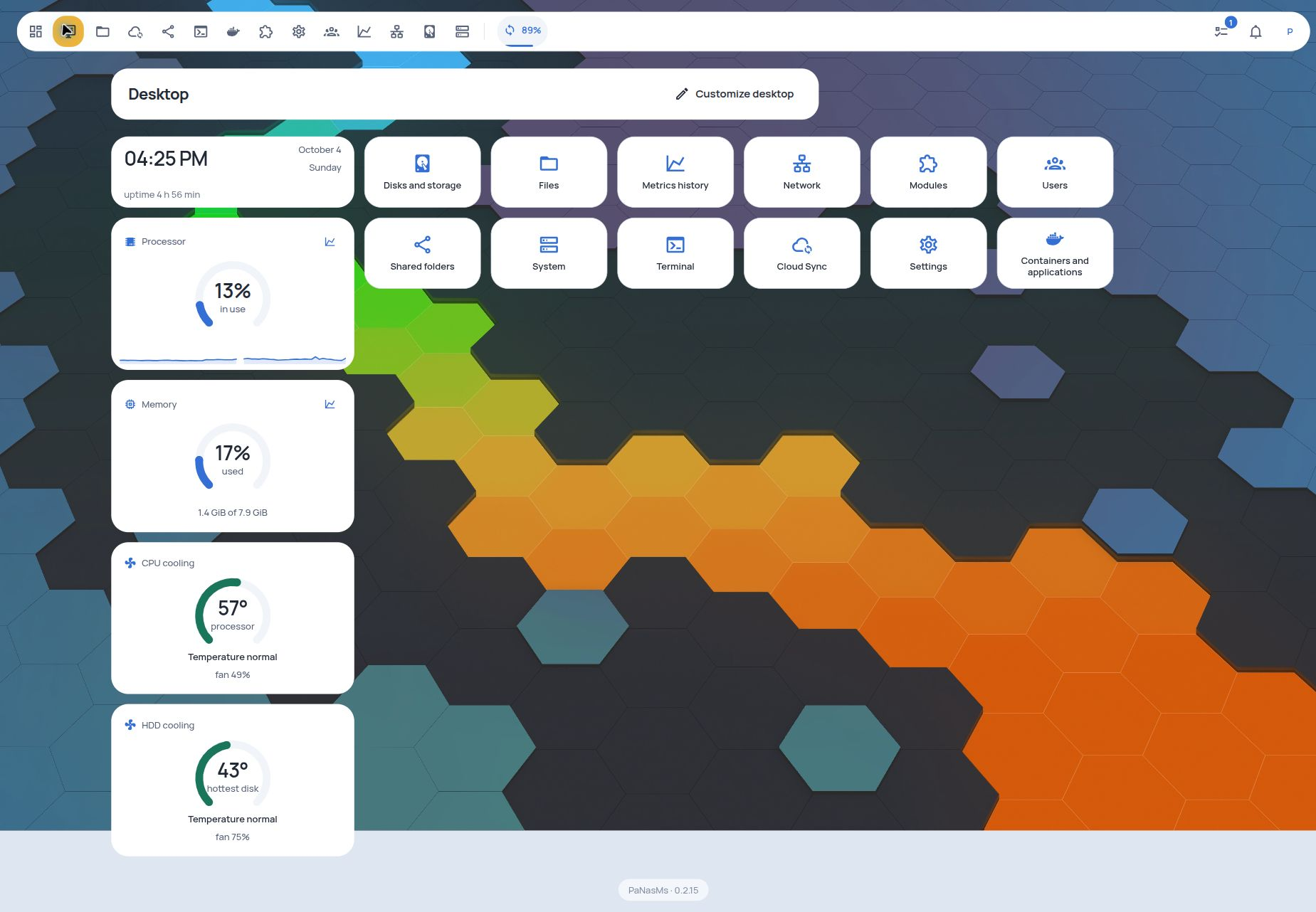
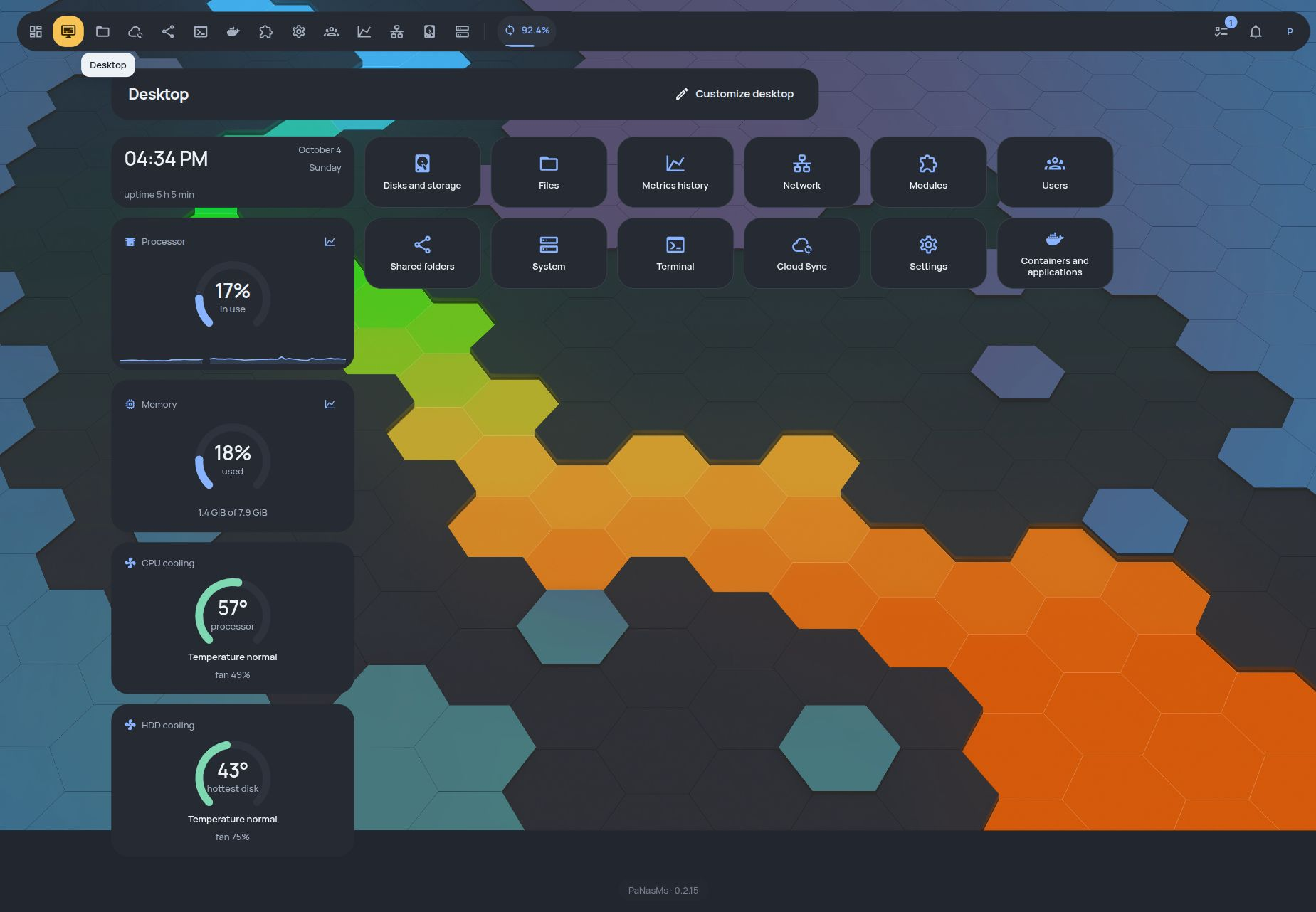
DIY · ARM64 + AMD64
Your hardware. Your Linux. Your NAS.
Install PaNasMs on an existing Linux system. ARM64 is tested on our Raspberry Pi 5 build; x64 installation and core workflows have also been checked in Proxmox virtual machines. Hardware-dependent features still need compatible devices.
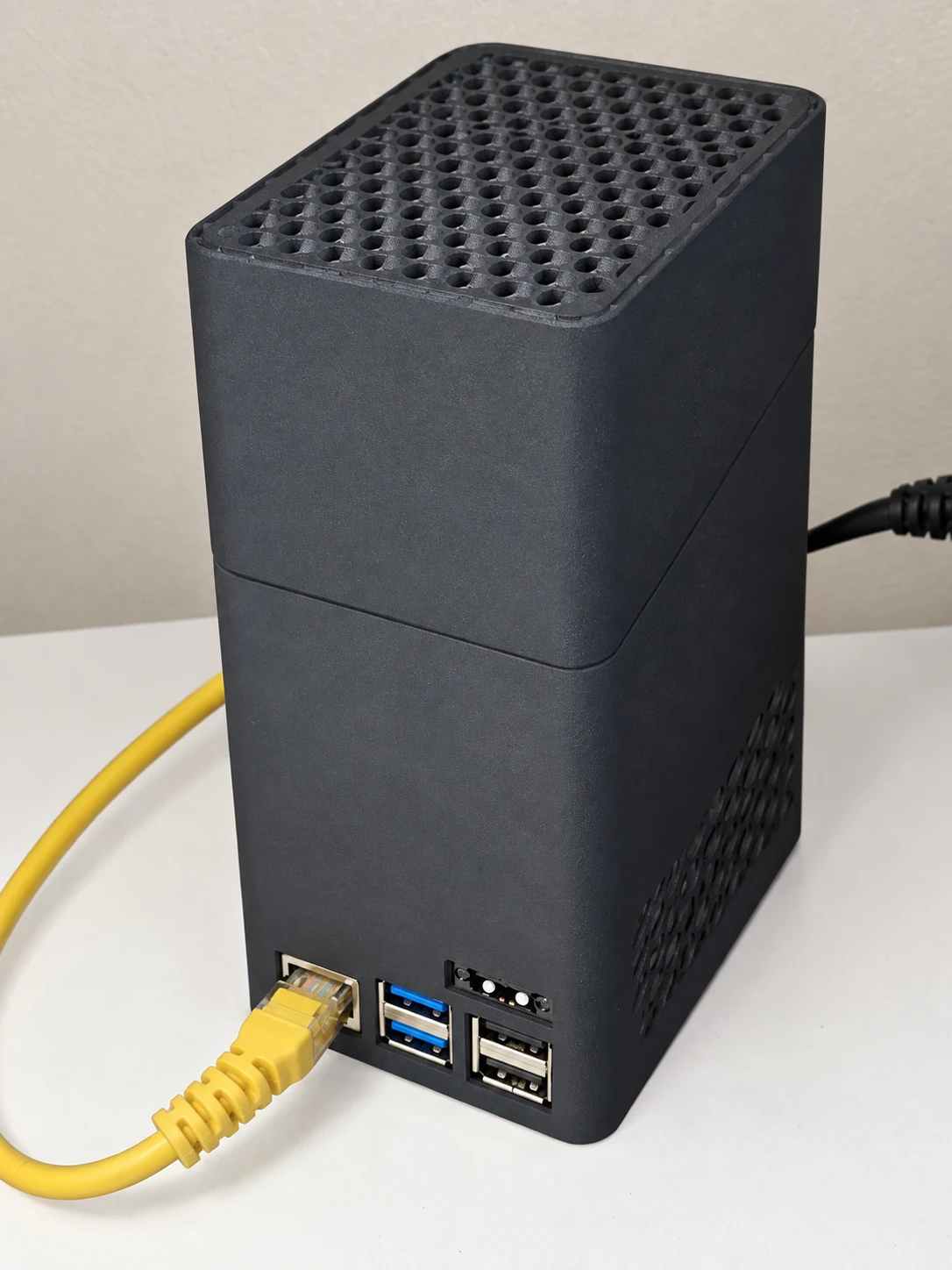
Meet our first NAS build ↗
Raspberry Pi 5 + Radxa Penta SATA HAT · assembly photos, parts and disk cooling wiring.
What you need
| Operating system | Architecture | Validation |
|---|---|---|
| Raspberry Pi OS 13 (64-bit) | ARM64 | Tested on Raspberry Pi 5 + Radxa Penta SATA HAT |
| Debian 13 | ARM64 / AMD64 | AMD64 installation and core workflows tested in a VM |
| Ubuntu 24.04 LTS | AMD64 | Installation and core workflows tested in a VM |
| Armbian 26.8 (Debian 13) | ARM64 | Installation and core workflows tested on Raspberry Pi 5 + Radxa Penta SATA HAT |
Use the exact distributions and versions above. Ubuntu ARM64, other Ubuntu releases and the Red Hat family are not supported by the current installer. VM checks do not certify every x64 computer. Armbian validation covers this Debian 13 build on Raspberry Pi 5, not every Armbian image or board.
Built for more than one screen
At your desk.
Or in your hand.
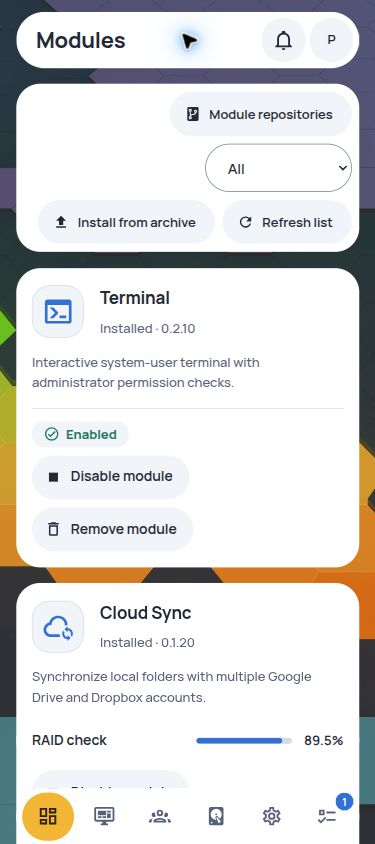
The same NAS, in your phone’s browser. Navigation moves to the bottom, section lists open as a sheet, and dense views become touch-friendly cards. No separate mobile app is required.
- Separate desktop layouts and pinned shortcuts for computer and phone
- Labelled actions and bottom-sheet dialogs on small screens
- Light, dark and translucent themes; English, Russian and Ukrainian
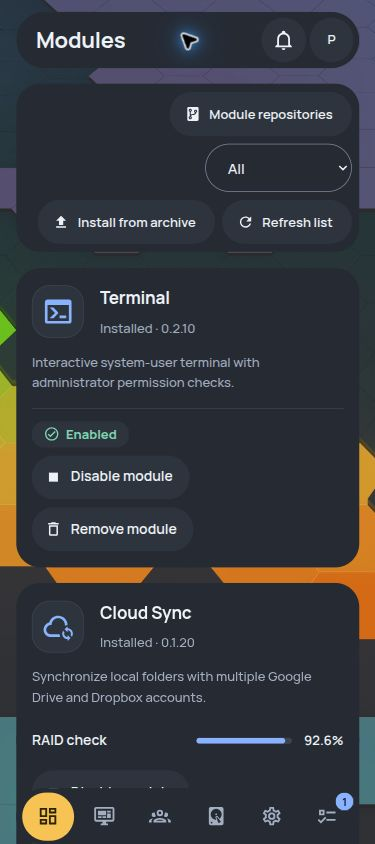
A familiar place to manage it all
Less guesswork.
More control.
From moving a folder to checking a disk, each part of PaNasMs has a clear job. Here is what you can do today.
01 Files
Local files. Google Drive.
Dropbox. One place.
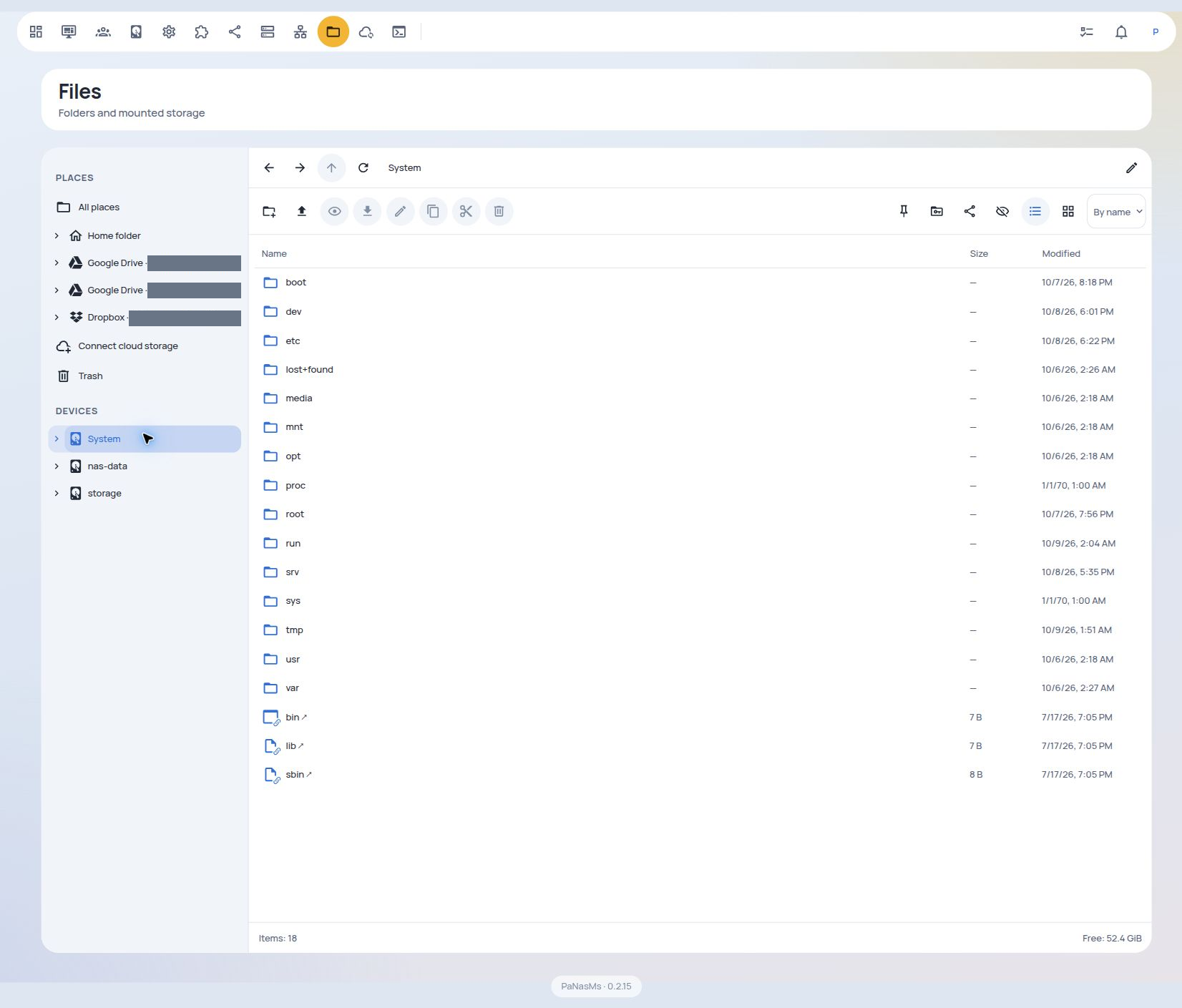
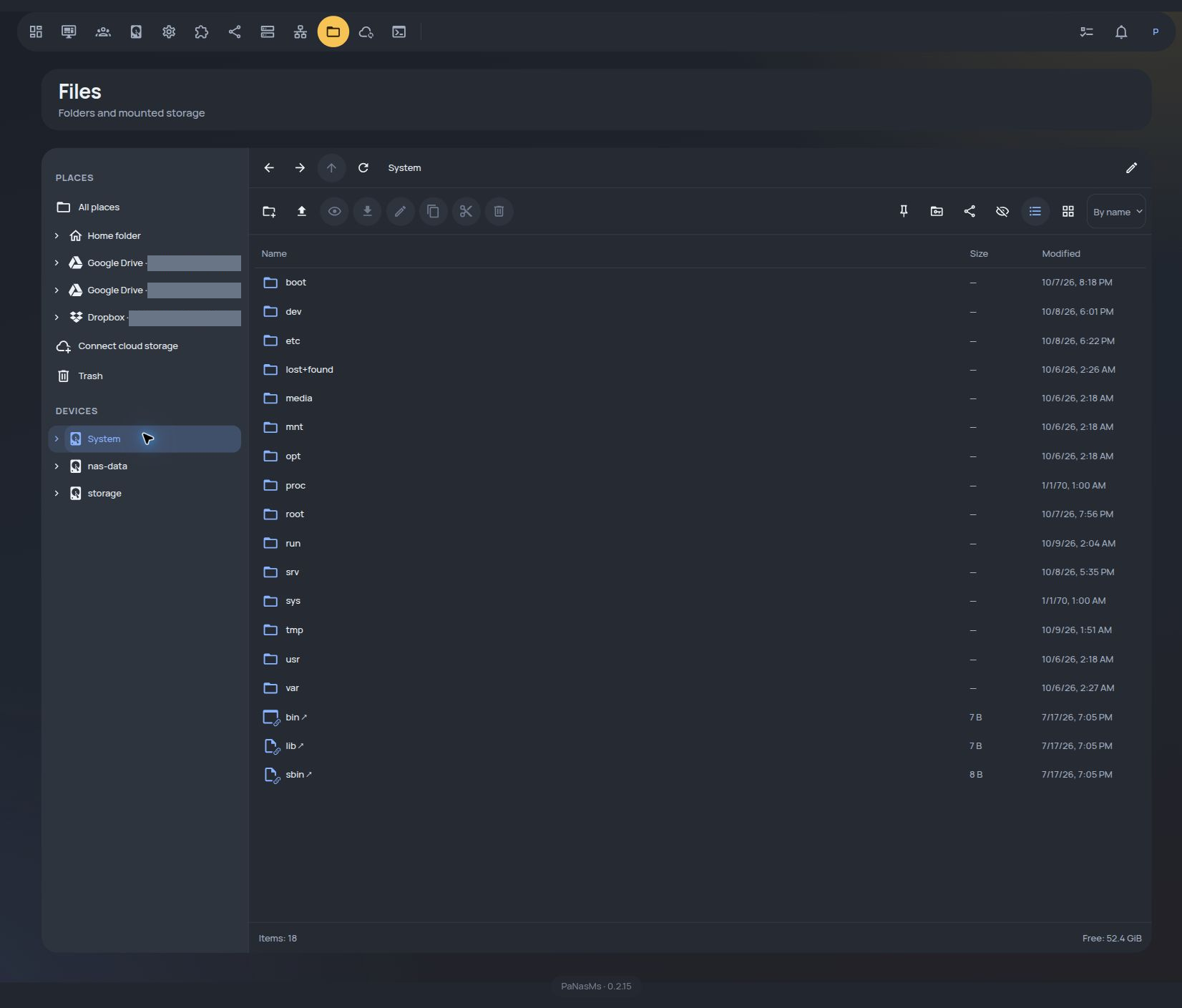
Browse local storage, network folders, Google Drive and Dropbox. Copy and move files between locations and accounts; uploads and file operations run in the background while you use other sections.
- Browse Google Drive and Dropbox directly in the folder tree, alongside local and network folders
- Connect multiple accounts; copy or move between the NAS and cloud, between two Google Drives, or between Google Drive and Dropbox
- Drag and drop with copy/move and skip, rename or replace choices
- Bulk operations and uploads run in the background while you use other sections
- Pinned folders, thumbnails, trash and access permissions
02 Storage
Know what is
happening to your disks.
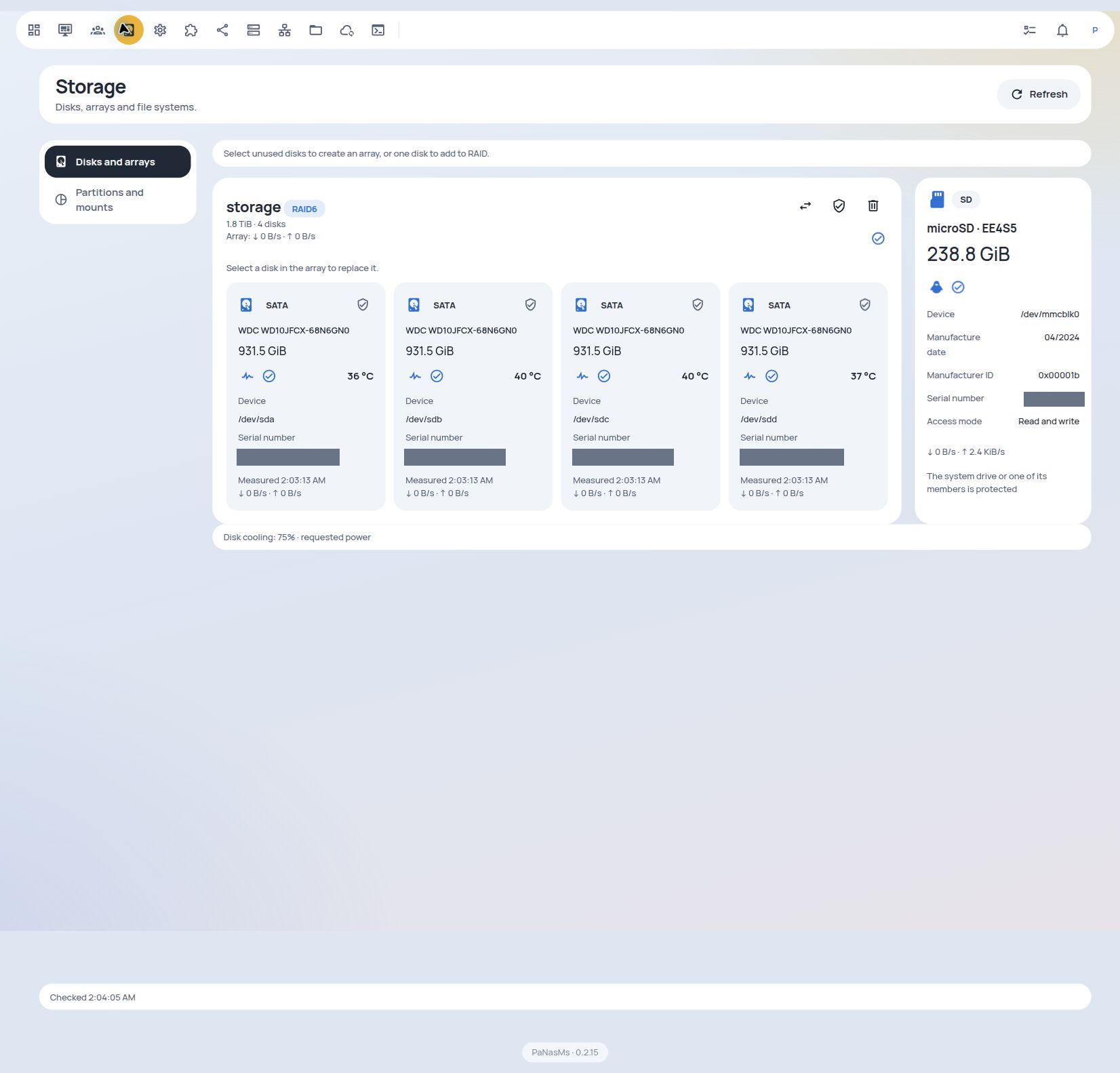
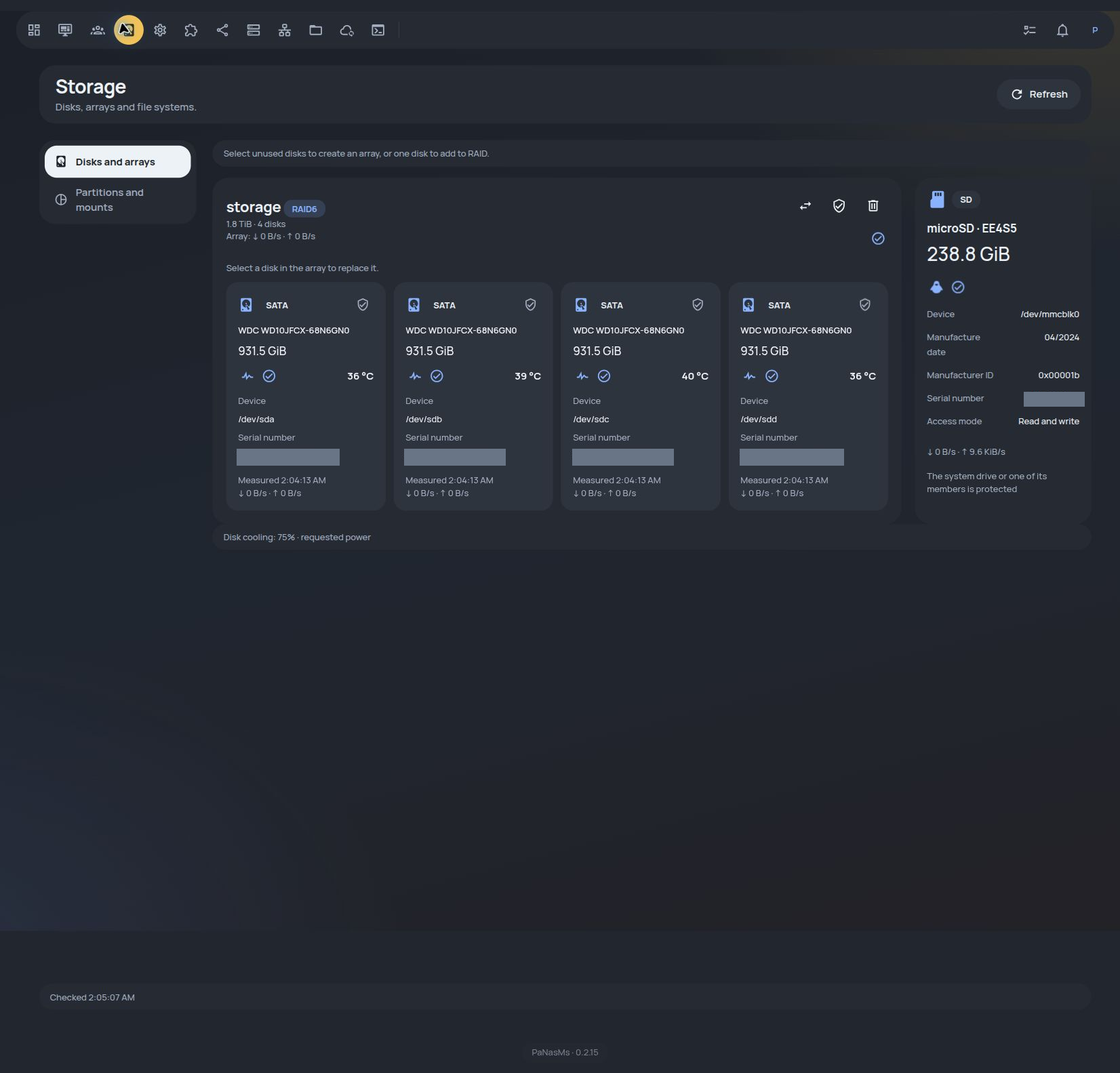
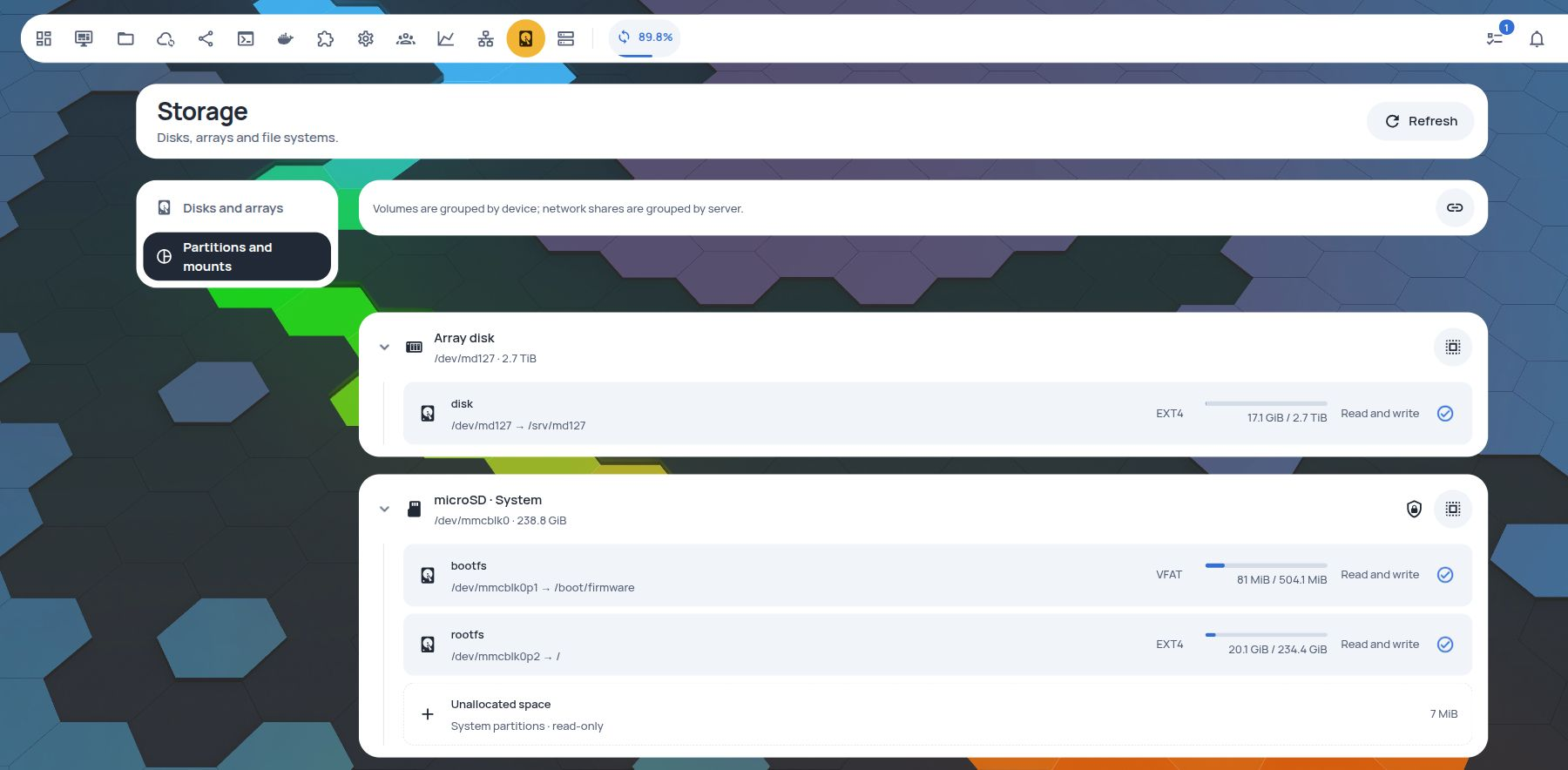
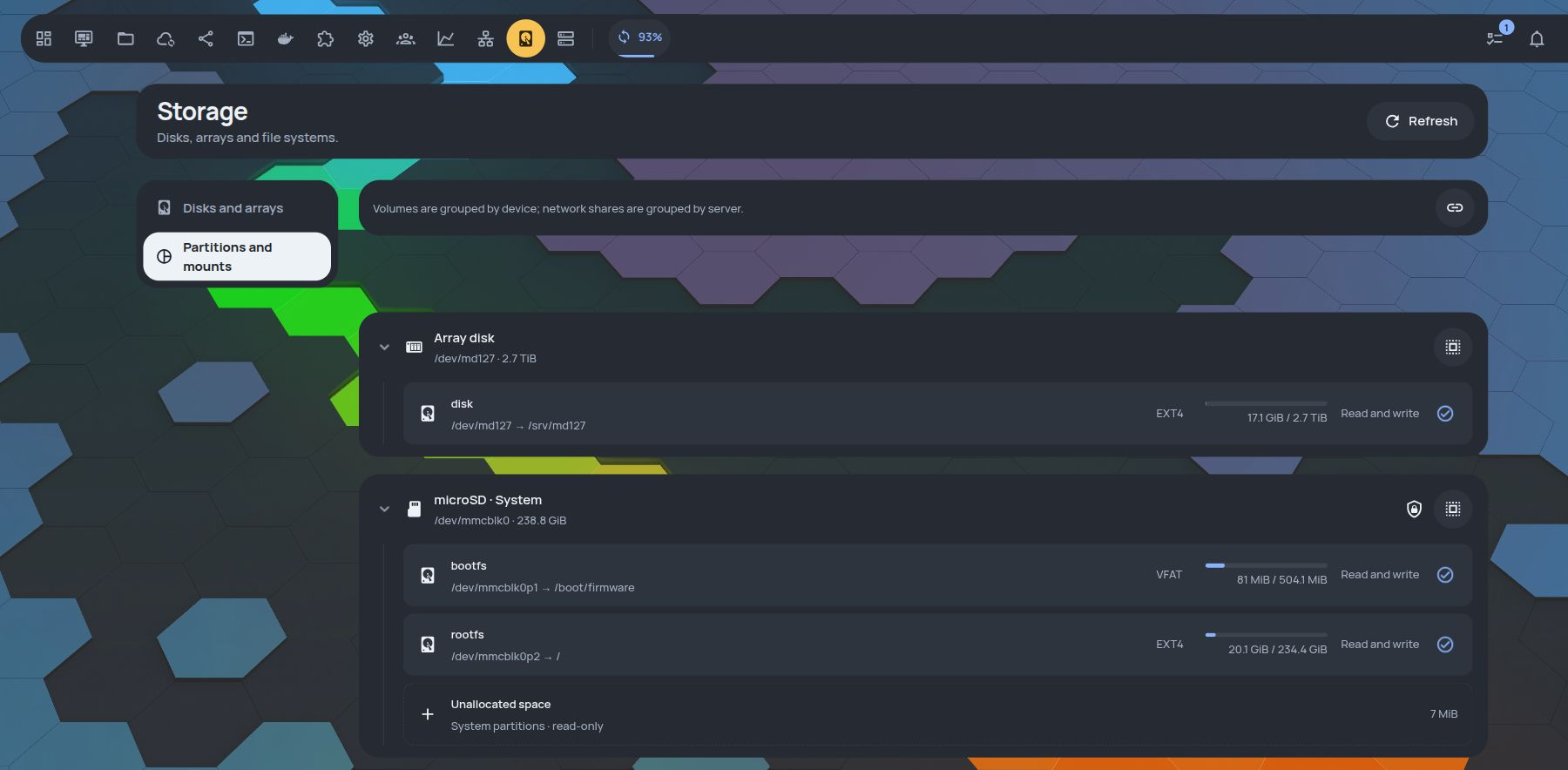
See your drives and disk arrays together. Check temperatures and health, manage partitions and mounts, and follow the progress of RAID maintenance.
- Create filesystems and manage local volumes or remote SMB/NFS mounts
- Manage RAID maintenance, progress and supported pause/resume operations
- Encrypt volumes with LUKS; unlock manually or configure automatic unlocking at startup
- Set an idle timeout: disks sleep when unused and wake automatically when files are accessed
- Schedule SMART checks, review results and follow disk temperatures
- On supported hardware, select external or built-in PWM cooling; stop the disk fan when all disks sleep
03 People & access
A place for everyone.
Access you decide.
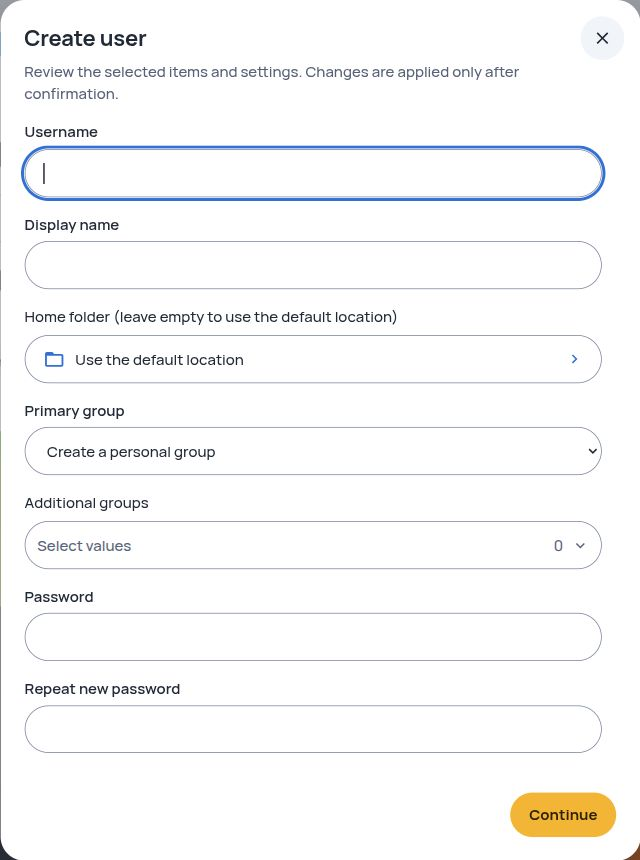
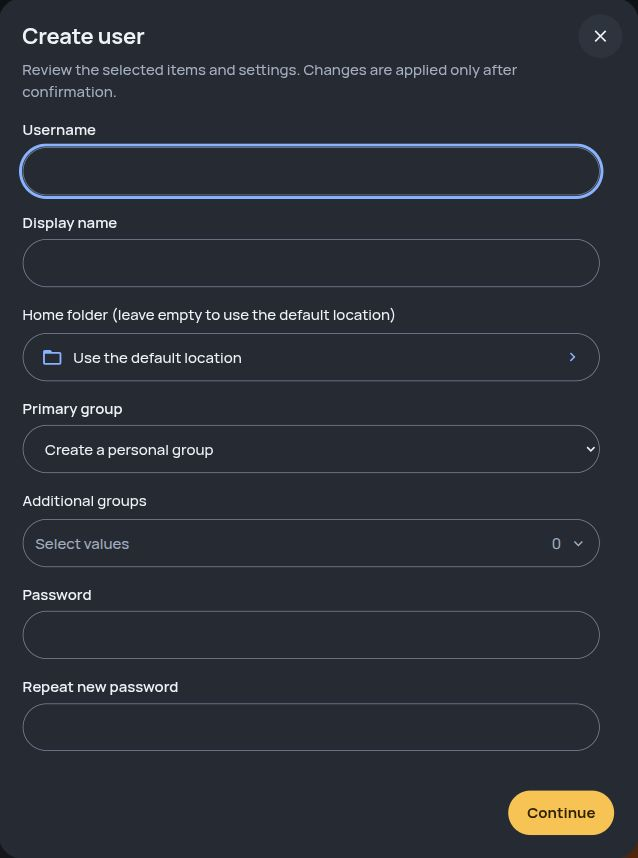
Use your existing Linux accounts. Create users and groups, choose home folders and control who can use shared folders over SMB or NFS.
- Linux users, groups, SSH keys and session controls
- SMB/NFS shares with explicit access permissions
- Move home folders with their contents and update affected user paths
- Link multiple external accounts; sign in with Google or GitHub
- Personal language, theme, wallpaper and separate phone/desktop layouts
04 Network
Connect your NAS.
Or share its connection.
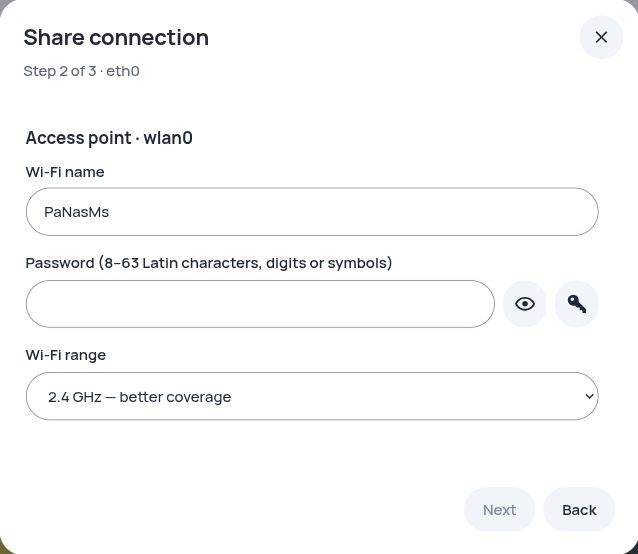
Manage wired and Wi-Fi adapters. A simple wizard helps you share a connection over another Ethernet adapter or a supported Wi-Fi access point.
- Ethernet and Wi-Fi in one place
- Connection sharing with multiple adapters
- Confirmation and rollback for network changes
- Fallback hotspot: enabled by default when a compatible Wi-Fi adapter is detected; configurable or switchable off in Settings → Network
05 Make it yours
Add the tools
you actually need.
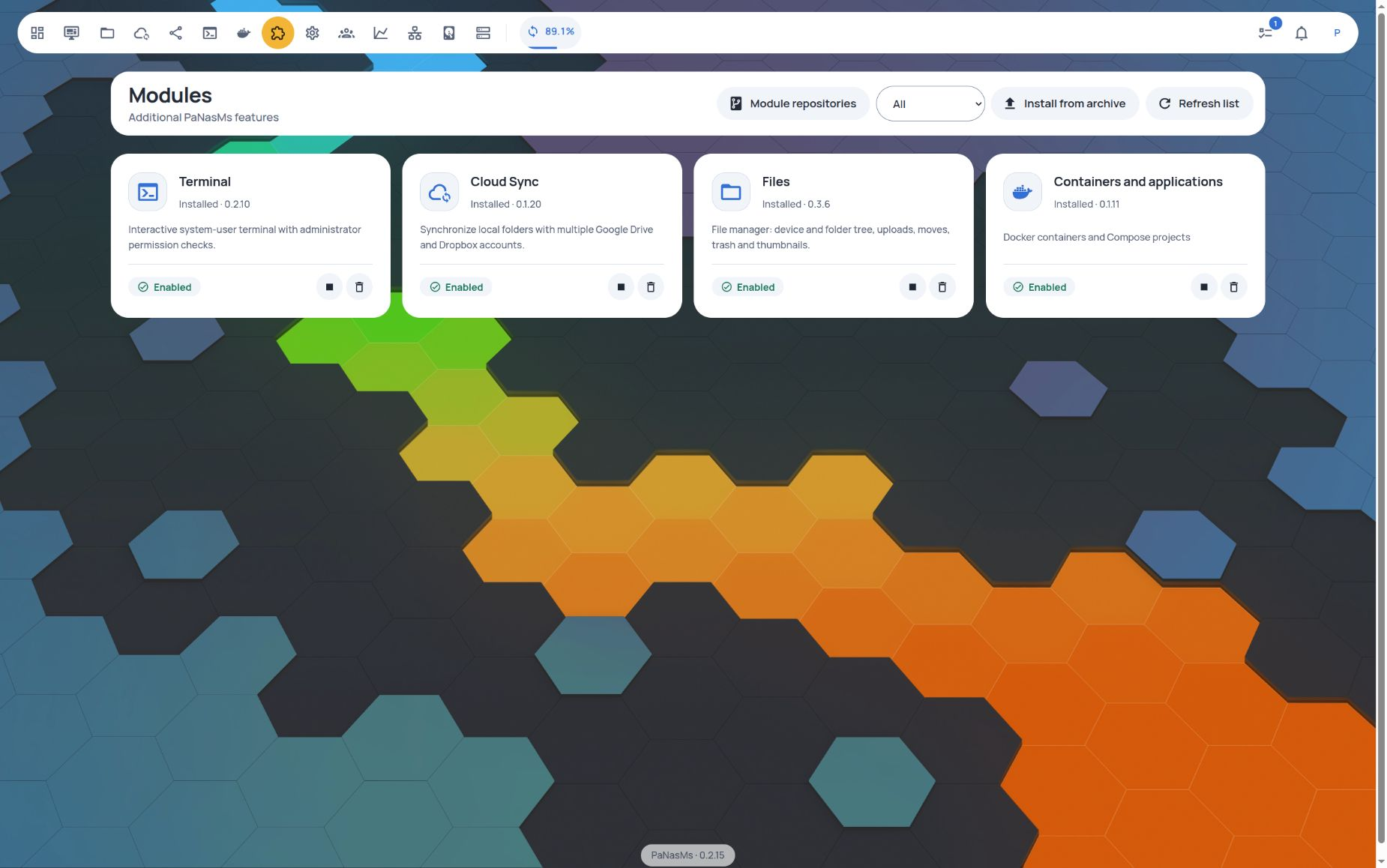
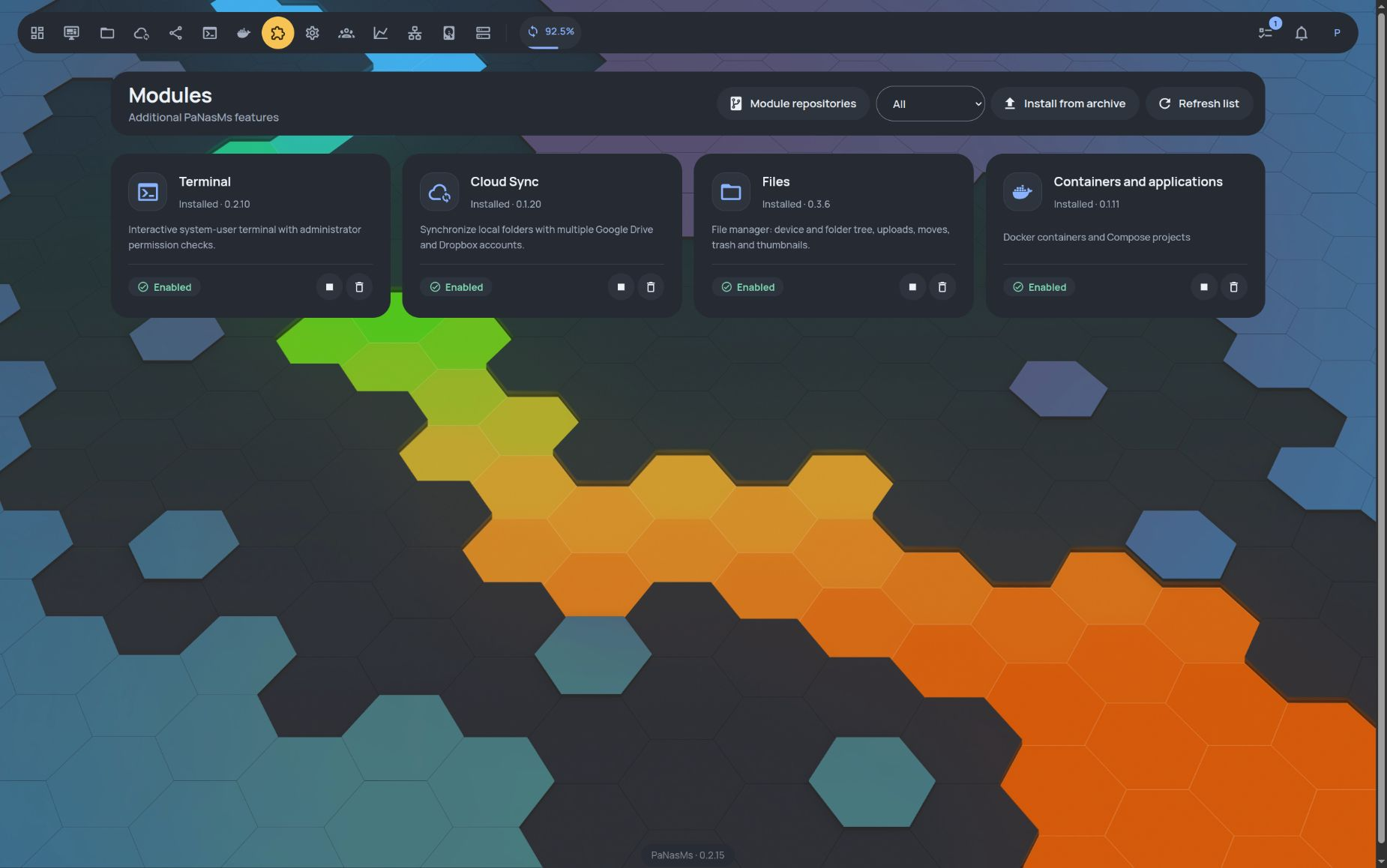
Install optional features from the catalog or a package file. Files, Terminal, Cloud Sync and Containers and applications have their own versions and can be managed independently.
- Signed packages, processor compatibility and dependency checks
- Install from the catalog or an archive; add your own repositories
- Persistent Terminal sessions and multiple tabs across section navigation
- Signed system updates with a backup, health checks and recovery after interrupted installation
06 Docker
More than storage.
Run your own services.
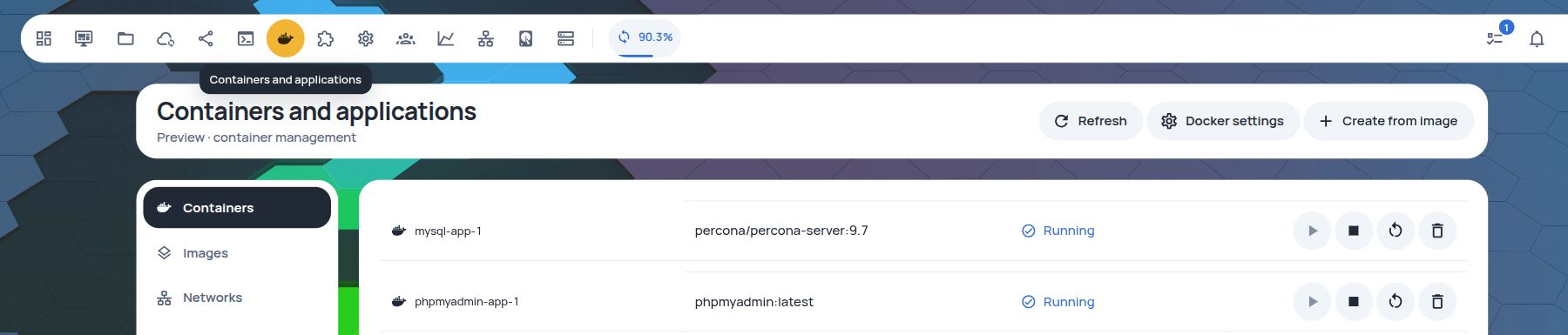
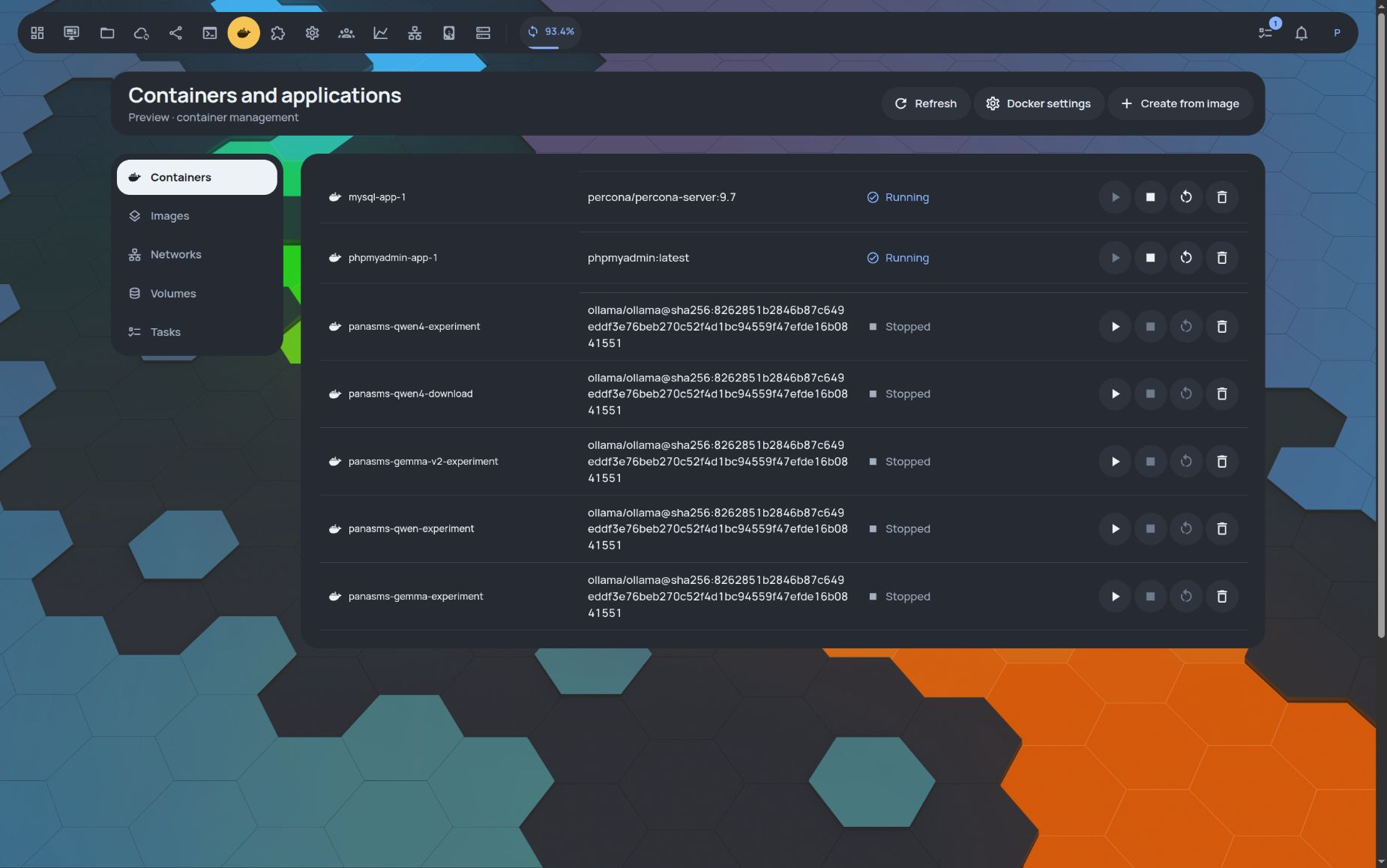
The optional Containers and applications module brings Docker into PaNasMs. Run a database or a web tool, connect services and manage them from the same interface. This is an administrator-only preview. The application catalog and new Compose deployments are not part of this preview.
- Search Docker Hub or enter a registry address; choose tags and check architecture
- Create containers with forms for ports, environment variables, networks and folders
- Inspect logs and live resources; manage networks and volumes
- Use existing Docker or install missing components; relocate Docker storage from settings
07 Google Drive · Dropbox
Choose the folders.
Choose the direction.
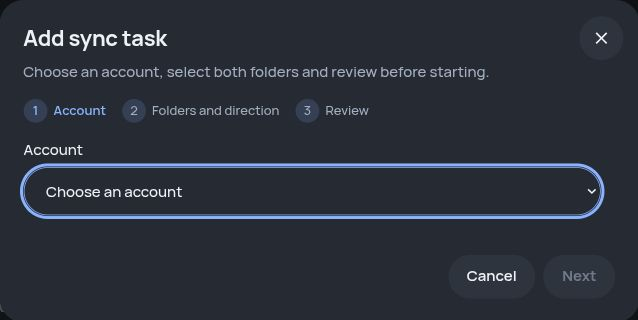
Connect multiple Google Drive and Dropbox accounts. Choose one folder on the NAS and one in the cloud for each task, then select download, upload or two-way synchronization.
- Three-step setup with visual folder selection
- Pause, retry and inspect sync history
- Shared external connections with permissions granted to each module
08 Monitoring
See the pattern,
not just the moment.
Keep an eye on CPU and memory use, disk activity and network traffic over time. Collection continues while the browser is closed.
- Hour, day and week views; collection continues without an open browser
- Desktop widgets for RAID health, temperatures and cooling
- Route each notification severity to one or more channels: email, Telegram and browser push
- Notifications use the user’s language; delivery requires channel setup, and browser push requires HTTPS and permission
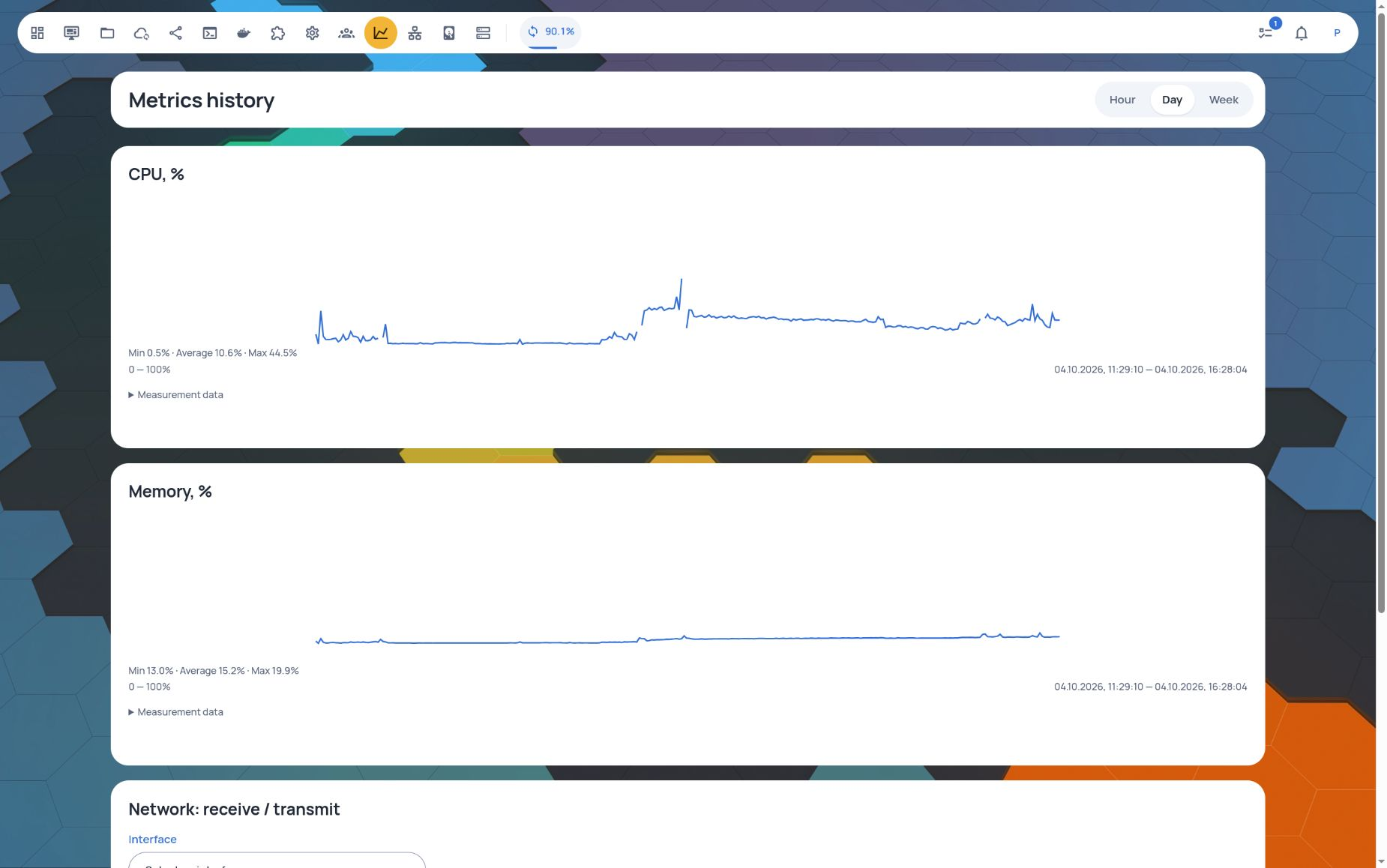
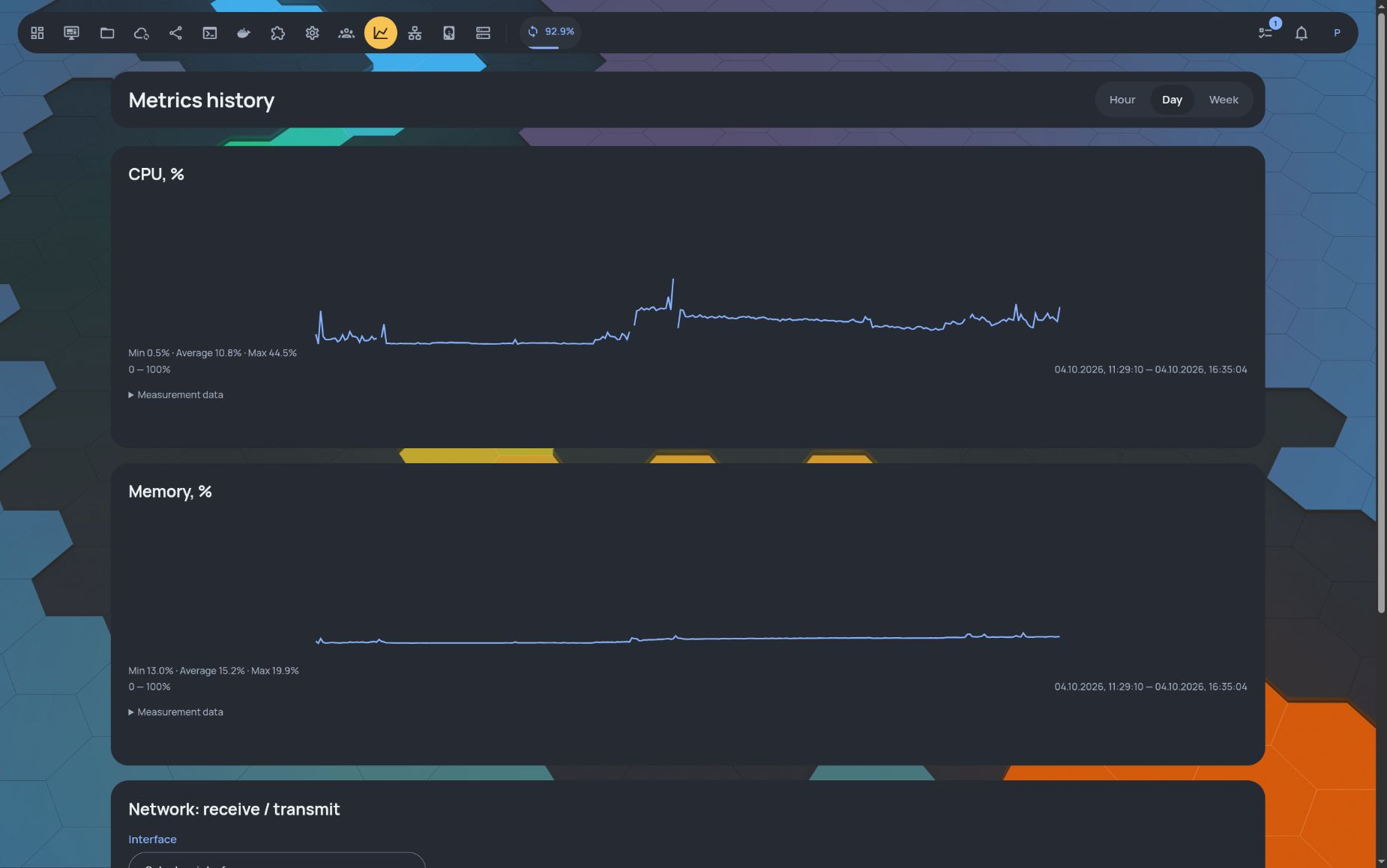
Real English UI screenshots captured on October 4, 2026 during the 0.2.15 release cycle. Desktop and 390 px mobile views, with light and dark themes. Some views are cropped to protect account details and device identifiers. Screenshots illustrate the interface; they do not show every feature described here. Files and Disks and arrays were recaptured on October 9 with stable 0.2.15; account addresses and hardware serial numbers are redacted.
Ready to explore?
Start with your hardware.
Keep your Linux.
PaNasMs installs as a Debian package on top of Linux. It is not a separate bootable operating-system image.
- 1
Prepare Linux
Start with a supported OS and an administrator account.
- 2
Run one installation command
Follow the guide: the installer verifies the package and installs dependencies, including RAID and file-sharing tools.
- 3
Open the NAS in your browser
Sign in with your Linux administrator account, then add the modules you need.